
Fundamentals » Linux Commands » ftp Complete Tutorial in 10 Examples – Must-know Command for CTF
Table of Contents
- ftp – Introduction
- 1. Connect to an FTP Server
- 2. FTP Log In (Standard or Anonymous)
- 3. Navigating Remote Directories
- 4. Navigating Local Directories
- 5. Downloading Files With ftp
- 6. Uploading Files With ftp
- 7. Managing Remote Files and Directories
- 8. Run FTP in a Script
- 9. Intercepting FTP Password and Data
- 10. Alternatives for Secure Transfers
- Final Thoughts on FTP
ftp – Introduction
ftp (File Transfer Protocol client) is the standard command line tool used to interact with a FTP service.
FTP servers commonly listen on port 21 and they allow file uploads, downloads, listing and directory management.
On most systems, the ftp command is available via package managers or installed by default.
Its use is very simple, let’s see it through a few examples!
This is a must-know for CTF and penetration testings, because some old FTP services are still in the wild today and are very common during CTF.
1. Connect to an FTP Server
Before doing anything, we must connect to the server running FTP.
Basic connection:
ftp example.com
We can specify the FTP port if it’s different from 21:
ftp example.com 2112
We can specify the username:
ftp username@example.com 2112
After hitting Enter, we will have to input our credentials (username and password, or only the password if the username is specified).
But we can also decide to provide a FTP URL that includes the credentials with the following syntax:
ftp://username:password@host:port/path
Example:
ftp ftp://john:P4ssw0rd@example.com:2112/
2. FTP Log In (Standard or Anonymous)
After connecting with the previous commands, we’ll be prompted for the credentials:
Name (example.com:kali): john
Password: ********
However, the Anonymous login is a FTP feature that is very old but might still be used, especially during CTF. In this case, we can log in with anonymous as username and anonymous as password:
Name (example.com:kali): anonymous
Password: *********
With the FTP URL provided earlier, this login step is skipped, but the credentials appear in the command line and therefore in our commands history (bad!).
If we want to exit an ftp connection:
exit
3. Navigating Remote Directories
Once we are connected, we can navigate through the directories just like on our regular machine using the following commands:
ls
cd folder
pwd
Where:
- ls list files of the current remote directory
- cd folder changes the remote directory to folder
- pwd prints the current remote directory we’re in
4. Navigating Local Directories
If we launch the FTP connection from the /tmp folder of our local machine, and we download a file, the file will be downloaded inside our /tmp folder. We may want to change our local directory to download files to another directory, or to upload files from another directory.
We can do this through FTP with the following commands:
lcd folder
lpwd
Notice the l at the beginning that stands for local. Those commands change and print the local directory.
5. Downloading Files With ftp
To download a single remote file into our local current directory:
get remotefile.txt
To download a single remote file and rename it into our local current directory
get remotefile.txt localfile.txt
To download multiple files, we can use the mget command (m = multiple) along with the wildcard character “*”. The following command downloads all the .txt files from the current remote directory into our local directory:
mget *.txt
6. Uploading Files With ftp
Uploading is similar to downloading.
To upload one file of our current local directory to the current remote directory:
put localfile.txt
To upload and rename the file on the server:
put localfile.txt remotefile.txt
To upload multiple files, we use the mput command. e.g. to upload all the .txt files of the current local directory to the remote directory:
mput *.txt
7. Managing Remote Files and Directories
We can also create and remove a remote directory and delete or rename remote files.
Create a remote directory called newdirectory:
mkdir newdirectory
Remove the remote directory called newdirectory:
rmdir newdirectory
Delete a remote file:
delete file.txt
Rename a remote file:
rename file.txt newname.txt
8. Run FTP in a Script
It’s possible to run a non-interactive ftp command using the “<<” operator on Linux and the -n option that disables auto-login:
ftp -n example.com <<EOF
user username password
put file.txt
quit
EOF
We can also store those FTP instructions in a file:
ftp -n example.com < commands.txt
9. Intercepting FTP Password and Data
FTP is NOT ENCRYPTED. This is a very old protocol and does not provide any encryption, from the first bit sent to the last.
This means that all the data, including the login credentials, can be retrieved with tools such as Wireshark.
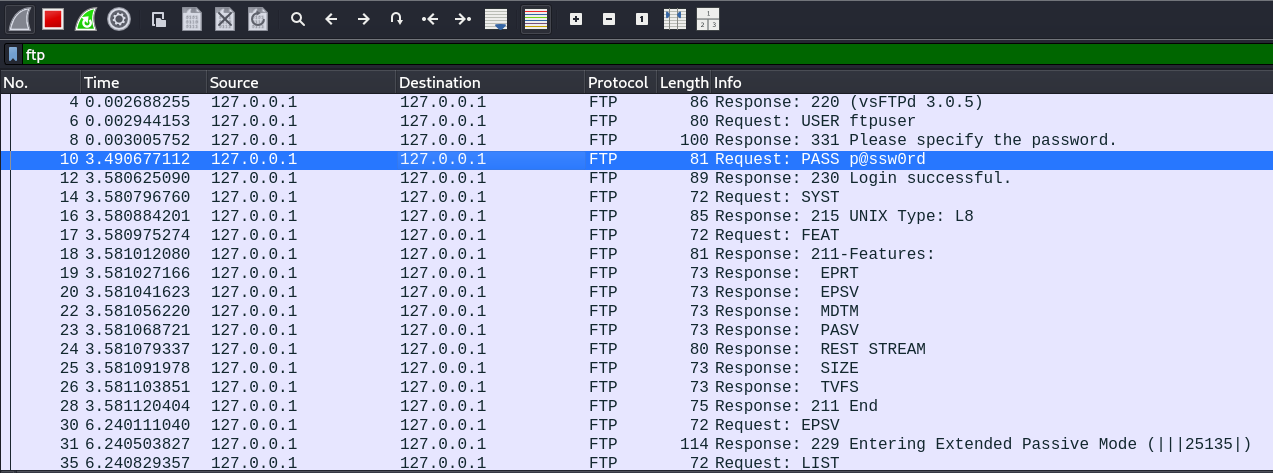
For instance, consider the following FTP exchange on my local FTP server:
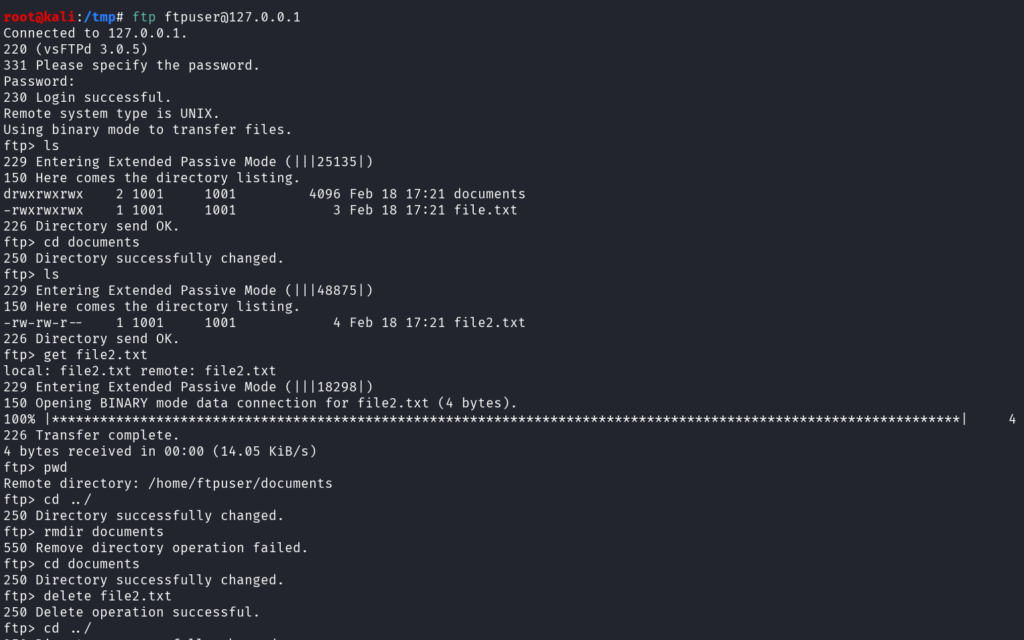
Nothing fancy. We log in with the ftpuser account, list directories, download a file, and try to delete a file and the folder on the server.
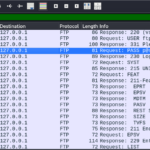
Now, during that exchange, Wireshark was listening on the loopback interface and captured all the FTP packets:
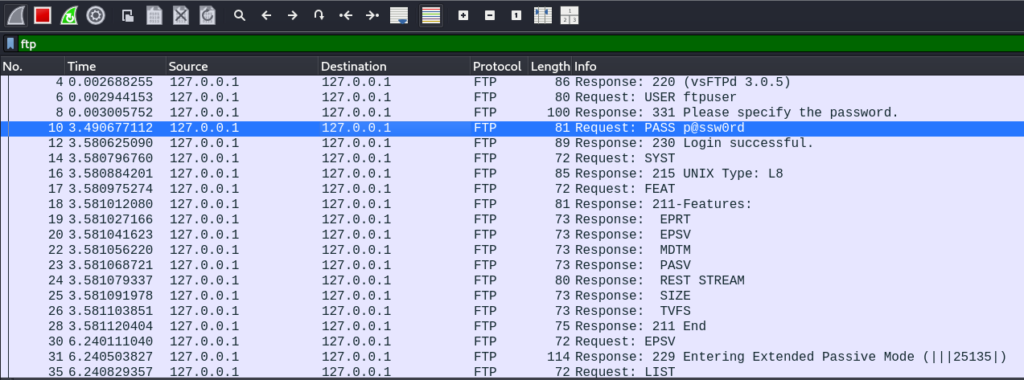
The whole data is visible on the “Info” column, including the username ftpuser and the password p@ssw0rd.
We can even use the Follow TCP Stream option to get the full FTP data sent by the client to the server:
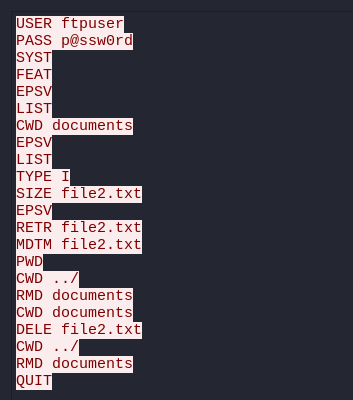
The first 2 instructions reveal the username and the password.
And the rest reveals all the operations that were carried.
Moral of othe story: don’t use FTP for sensitive data transfer.
It’s still used today in very specific cases, like when a network equipment retrieves its configuration file locally.
Otherwise, it’s a very bad idea to use FTP, and we must use the evolved and secure versions of FTP.
10. Alternatives for Secure Transfers
To replace FTP, we can use:
- ftps (FTP encrypted with TLS)
- sftp (SSH File Transfer Protocol)
- scp (SSH file transfers)
Those 3 alternatives provide encryption.
Final Thoughts on FTP
Finally, ftp allows a quick and easy file transfer mechanism, but it lacks encryption.
It must be replaced by more secure alternatives like ftps, sftp and scp.
But when a FTP service is discovered during a penetration testing or a CTF, we must know how to interact with it, and always test for anonymous access, outdated FTP server versions or weak credentials.
Enjoyed this post? Read more from PentestGuides:
- ftp Complete Tutorial in 10 Examples – Must-know Command for CTF
- scp Quick Tutorial – Transfer Files Securely Over SSH
- curl Quick Tutorial – Everything You Need to Know
- Netcat (nc) Full Tutorial – Easy TCP/UDP Guide
- nmap Tutorial – the Ultimate Network Scanner
- Hydra Tutorial – How to Effortlessly Brute-force Network Services
- Solving Lookup – TryHackMe Challenge Writeup

- Solving Basic Pentesting – TryHackMe Challenge Writeup

- RootMe Writeup – Full TryHackMe CTF Solution

- Corridor Writeup – TryHackMe IDOR Challenge

.
Disclaimer
All content published on this website is for educational purposes only.
The techniques, tools, and methodologies described here are intended to be used only on systems you own or have explicit permission to test.
I do not encourage or take responsibility for any illegal use of the information provided.